
How to train an AI chatbot on your own documents
You already have the answers your customers want: in price lists, policies, menus and product sheets. Here is how to turn them into an AI agent that answers from them.

“Train an AI on your documents” sounds like a project for a data team. For a chatbot that answers customers, it's much simpler than that, and understanding what actually happens helps you get better answers.
What “training” really means here
Your documents don't change the AI model itself. Instead, askAgent reads your files and pages, splits them into small passages, and indexes them so they can be searched by meaning. When a visitor asks a question, the agent finds the passages that match best and writes its answer from them.
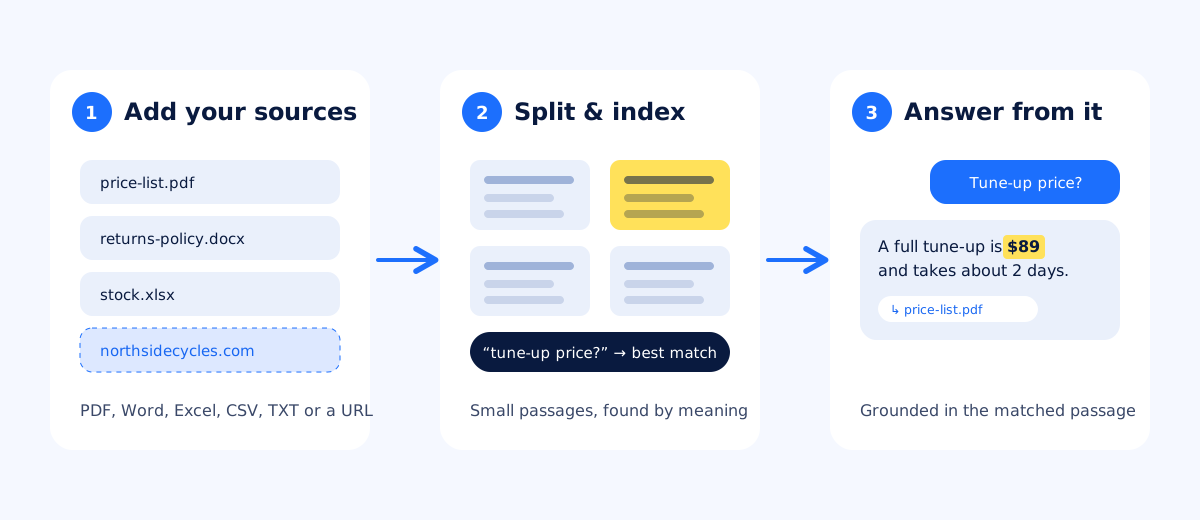
This has two practical upsides. Changes take effect as soon as a file is re-processed, with no retraining. And your documents are only used for your chatbot's answers, never to train anyone's AI models.
Which sources to add
askAgent reads PDF, Word (.docx), Excel (.xlsx), CSV and plain text files, and it can read the pages of your website from its address. A good first set for most small businesses:
- Prices and services: your price list, menu or service catalogue.
- Policies: returns, cancellations, delivery, warranty, payment methods.
- Practical details: opening hours, locations, parking, how to book.
- Your website: add its address so the agent knows everything that's already published.
- An FAQ file: a plain list of questions you get by phone or email, each with its answer.
How to prepare documents for better answers
The agent can only be as clear as its sources. You don't need to rewrite everything, but these habits pay off quickly:
- One topic per heading. A heading like “Delivery to Abu Dhabi” followed by the details is easy to match. A wall of text mixing delivery, returns and warranty is not.
- Put the price next to the thing. “Full tune-up: $89, about 2 days” in one row beats a table where the prices sit three columns away from the names.
- Spell out the conditions. “Free delivery over $50, within the city” answers more questions than “Free delivery*”.
- Use text, not pictures of text. A scanned PDF that is only an image has no readable text. Export it from the original file instead, or paste the text into a .txt file.
- Keep one current version. When something changes, replace the old file rather than adding a second one, so the agent never sees two conflicting prices.
Tell it how to behave
Documents cover what your agent knows. Instructions cover how it talks. In plain words, you can tell it to be friendly and brief, to ask for a name and phone number when someone wants to book, or to always mention that walk-ins are welcome. Keep instructions about tone and behaviour; facts belong in your documents.
Test like a customer
Before you put the bubble on your site, ask the questions your customers really ask, the way they ask them: short, misspelled, in a hurry. “price tune up?” is a fair test. When an answer is missing or vague, the fix is almost always in the source, so improve the document and ask again.
Once you're live, the Unanswered report keeps showing you what to add next. Most businesses find that a couple of rounds of this covers the large majority of what visitors ask.


