
How to train an AI chatbot on your website
Your website already answers most of what visitors ask. The fastest way to build an AI chatbot is to let it read those pages, so it can answer from them in a chat.

An AI chatbot trained on your website reads your pages and answers visitors from them. You don't upload anything or copy text across: you give it your address, and it does the reading. It's the quickest way to get a useful chatbot live, because the content already exists and is already public.
How website training works
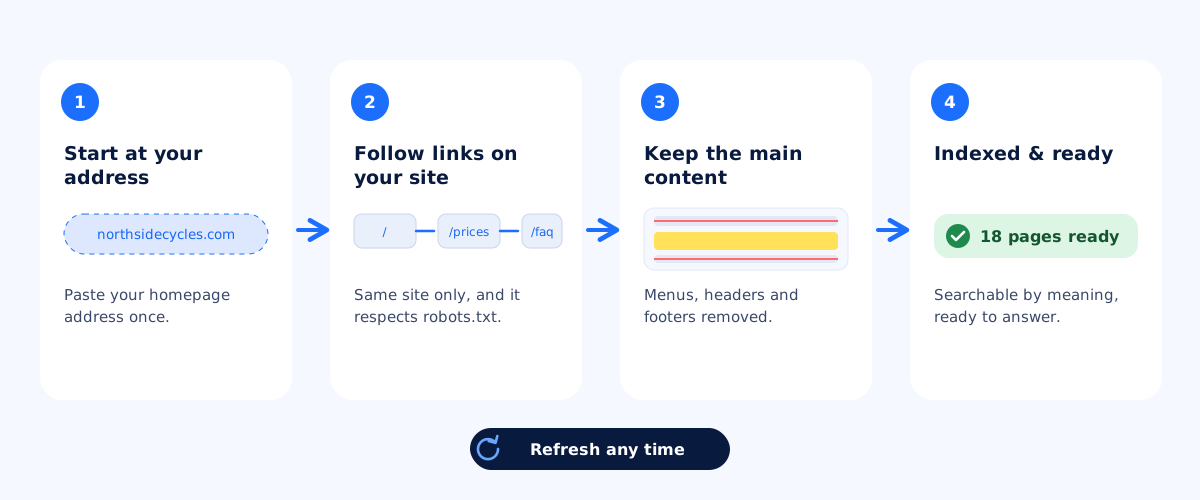
- Start at your address. In askAgent, open your chatbot's Documents tab and add your website's address.
- Follow your links. The reader starts there and follows links to other pages on the same website. It doesn't wander onto other sites, and it respects the rules in your
robots.txt. - Keep what matters. Menus, headers, footers and forms appear on every page and add noise, so they're removed. What's left is each page's main content.
- Index it. The text is split into passages and indexed by meaning, the same way as uploaded documents. When a visitor asks a question, the agent finds the best-matching passages and answers from them. (More on that in training on your documents.)
Each plan has a page budget: up to 20 pages on the free plan and 500 pages across up to 10 websites on Pro. For most small business sites, that's every page that matters.
Make your pages easy to learn from
- Put facts in text. Prices inside images, PDFs-as-pictures or sliders can't be read. If your price list is an image, upload the original file instead.
- Avoid content that only appears after clicks or scripts. The reader takes the page as your server sends it and doesn't run JavaScript. Content that loads later, or only inside a pop-up, may be missed. Most WordPress, Shopify, Wix and Squarespace pages are fine.
- Link your important pages. If a page isn't linked from anywhere, the reader can't find it. Add it to your menu or footer, or add its address separately.
- Give each page one topic. A clear “Delivery” page beats delivery details scattered across five pages.
Keep it up to date
When you change your website, the chatbot doesn't see it until the pages are read again. In the Documents tab, use Refresh on your website to fetch the latest version. Make it part of your routine: update the site, then refresh the chatbot.
Test it like a visitor
Use the Test chat tab to ask the questions your pages should answer. If an answer is missing, check that the page was found (the Documents tab shows how many pages were read) and that the information is in the page's text. When the facts aren't on your website at all, the agent will say it doesn't know, which is exactly what you want. Those questions show up in your Unanswered report, ready for you to add.
Then add the chatbot to your website with one line of code.


