
How to add an AI chatbot to WordPress
You don’t need a heavy chatbot plugin to put an AI chatbot on WordPress. One line of code in your site’s footer is enough, and it works with any theme.

WordPress has hundreds of chatbot plugins. Many add their own settings pages, database tables and scripts to every page. An askAgent AI chatbot for WordPress takes a lighter approach: your chatbot is set up in the askAgent dashboard, and WordPress only needs one line of code to show it.
Before you start
Create your chatbot in askAgent, add your documents and your WordPress site's address so it can learn from your pages, and test it in the Test chat tab. Then copy your snippet from the Embed code tab. It looks like this:
<script src="https://askagent.live/widget.js" data-bot-id="b_7f3k2q" async></script>Method 1: a header and footer code plugin (recommended)
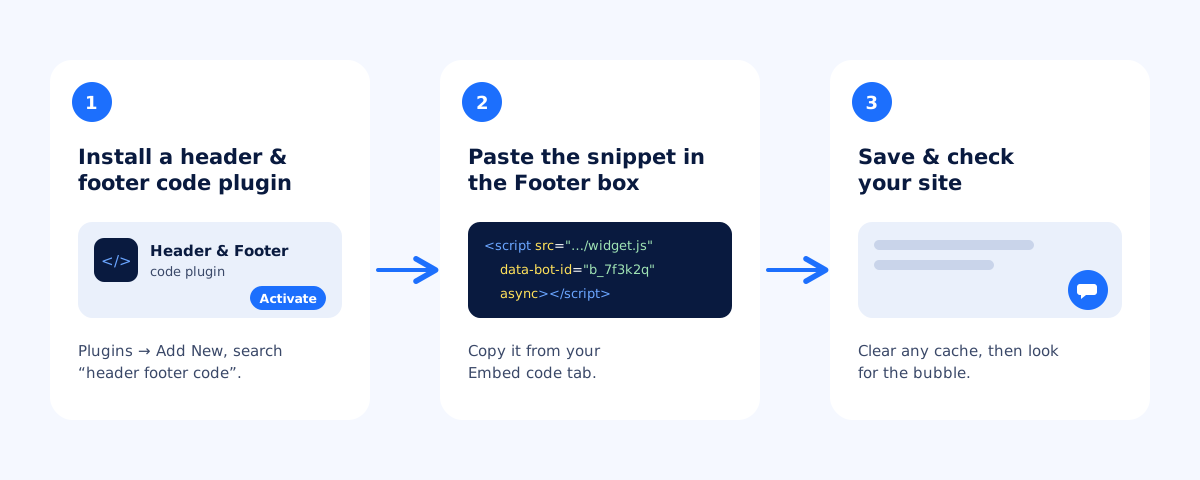
- In your WordPress admin, go to Plugins → Add New Plugin and search for a header and footer code plugin, such as WPCode.
- Install and activate it.
- Open the plugin's Header & Footer screen and paste your snippet into the Footer box.
- Save, then open your site in a new tab. The chat bubble appears in the corner.
Method 2: your theme's footer
If you'd rather not add a plugin, classic themes have a footer.php file. Paste the snippet just above </body> there, ideally in a child theme so a theme update doesn't remove it. Block (full-site editing) themes don't use footer.php, so method 1 is simpler for them.
Allow your domain
In askAgent, add your site's domain to the chatbot's allowed domains, both with and without www if your site uses both. If you have a staging site, add that domain too while you test.
WordPress.com sites
On WordPress.com, installing plugins requires a plan that allows them. On self-hosted WordPress (WordPress.org), any site can use either method above.
After it's live
Check the chat on your phone, ask a question in another language, and look at your Unanswered report after a few days. When you update your WordPress pages, use Refresh on the website in your Documents tab so the chatbot learns the changes.
Using another platform? See Shopify or Wix, Webflow, Squarespace and plain HTML.


